

GhostPrompter is the essential teleprompter for course creators that lets you read your lesson plan on-screen while recording course content without blocking your slides, your software, or your workflow
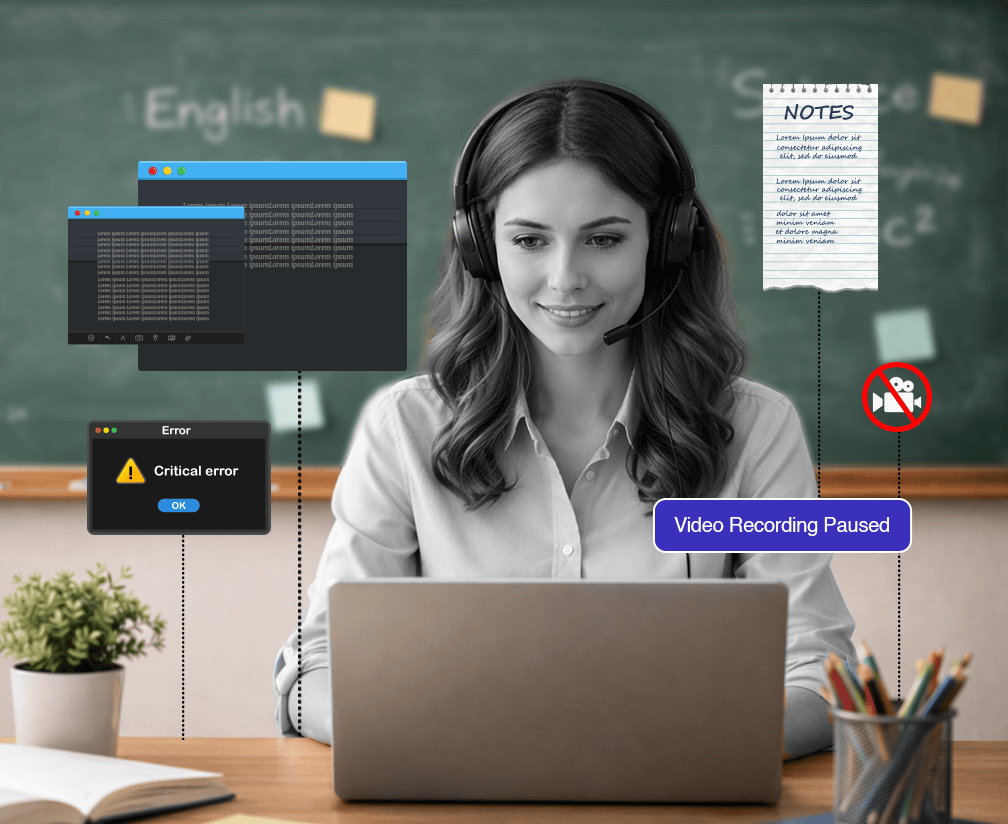
You’re recording a module for your teleprompter for online course setup. Toggling between your script and your slides kills your recording flow. Reading from notes off-screen makes you look distracted, while going off-script leads to hours of re-recording.
GhostPrompter puts your lesson plan directly on your screen floating over your slides. It is a unique teleprompter for course creators because it allows you to click and interact with your software while reading. Advance slides, click menus, or type code—the overlay stays active but never blocks your mouse.
Your script floats on-screen but doesn't block interaction. Advance slides, demo software, open files, type in chat all while reading.
The script follows your teaching pace automatically. Pause to explain a concept? It pauses with you. Speed up? It speeds up.
GhostPrompter doesn't appear in screen recordings, screen shares, or recording software. Your students see your slides. You see your script.
Doesn't slow down your system or interfere with recording. Runs locally, no internet required.

Start Recording: Launch Teachable, Thinkific, OBS, or Loom. Hit record. Your teleprompter for course creators script scrolls with your voice automatically.
Type directly in GhostPrompter or paste from your existing course outline. Organize multiple scripts for different modules.
Place it next to your slides, below your camera frame, over your timeline in your editing software wherever you naturally look.
Set font size, opacity, width, and line spacing. Make it readable without being distracting. Save your settings for next time.
Launch Teachable, Thinkific, OBS, ScreenFlow, Camtasia, Loom, or whatever you use. Hit record. Script scrolls with your voice automatically.
Watch how it stays invisible during course recordings
GhostPrompter runs on your desktop. It doesn’t integrate with anything — it just works.





















Everything you need to know before you start recording with confidence
No. GhostPrompter is invisible to screen capture, screen share, and recording software. Only you see it.
Yes. You can pause, edit your script, and continue. Or write your entire lesson plan before recording and just read it.
No. GhostPrompter overlays your existing screen. A second monitor can give you more screen real estate, but it's not required.
Yes. GhostPrompter floats over your presentation software. You can advance slides, edit slides, run demos — all while reading your script.
The script pauses when you stop talking. Resume whenever you're ready. Works perfectly for live webinars, Q&A sessions, or office hours.
No. Voice-activated scrolling runs locally. No internet required.
Absolutely. Many course creators use GhostPrompter for live launch presentations, webinars, and evergreen webinar recordings where they need to stay on message under pressure.
No more fumbling. No more missed points. Just clean, confident teleprompter for online course videos done in one take
Take your lessons to the next level — Explore the Professional Features that make GhostPrompter the #1 teleprompter for course creators.
